 Before you look at any of these Questions & Answers — make sure your website meets the following System Requirements. If it does not meet any one of these requirements then Pretty Link won't work for you:
- Your site must already have pretty Permalinks working before the “Pretty Link” plugin will work. This means that on your “Settings”->”Permalinks” page you should have something other than “Default” selected as your Permalink structure.
- PHP 4 or 5 — you'll have a hard time running WordPress itself if you're using anything other than PHP 4 or 5.
- MySQL 4.1 and above — This one is critical. Pretty Link uses many advanced SQL queries that are not supported in versions prior to 4.1. If you don't know how to check the version of your database, contact your system administrator. If you use a version earlier than 4.1, Pretty Link simply won't function for you at all.
- Javascript must be enabled on your browser.
Q. I installed your plugin and I'm getting a 404 error or the target URL is displaying improperly
A. This is by far the most common issue — luckily it should be pretty easy to solve. There are some things you can do to troubleshoot this though. Here are a couple of suggestions:
- The first thing you should do is make sure you have enabled pretty Permalinks in your WordPress Admin area. Click on “Settings” -> “Permalinks” and select anything other than default. Selecting a different Permalink structure tells WordPress to start rewriting URLs. I prefer using a Custom Permalink structure with just the post name: “/%postname%/” …
- Try your the target URL for your Pretty Link directly — make sure its correct and goes where you want it to go
- Check with your webhost to see if you are running on Apache with mod_rewrite enabled. Usually this is the case — especially if you have pretty permalinks working (if your permalinks are working but all start with index.php then WordPress may be using something other than mod_rewrite to create your permalinks). Pretty Link will not work without mod_rewrite enabled so you'll have to work with your webhost to get it enabled on your site before this plugin will work.
- If none of these issues work for you then post the exact nature of your issue as a comment on this page.
Q. The graph on the “Hits” page is blank
A. There are 2 possible issues that could be preventing your Hit Graph from showing up:
- There is a conflict with another Plugin. To find out which plugin is preventing your graph from showing, disable all plugins other than pretty link, check the “Hits” page (if a plugin conflict is the issue then this should make the graph show up) to see the graph. Re-enable each of your other plugins one at a time checking the “Hits” page after you load each one until you see that your Graph has disappeared. Once you have narrowed it down to 1 or more plugins that conflict with Pretty Link, post a comment on this page letting me know so I can test Pretty Link against it.
- There is a database issue. If you suspect this is an issue, right click the blank report page and select View Source. Perform a search for “Fatal Error” on this page and let me know what the error was by posting it as a comment on this page
Q. If I have my wordpress install running out of a subdirectory of my website can I still use Pretty Link?
A. Absolutely — there are actually 2 ways you can do this. First, you can just install Pretty Link in WordPress and it will create links that use your subdirectory as a base (example: http://mycoolurl.com/mywordpressdir/xag) or second, if you follow the instructions on this page then you can actually create Pretty Links that hang off of your main domain name (example: http://mycoolurl/xag) even though your WordPress install is actually in a subdirectory.
Q. How do I pass parameters from my Pretty URL to my Target URL?
A. It's actually quite straight forward. When you add or edit a link, click the “Advanced Options” link and then select the type of parameter forwarding you want to use. You have a couple of options:
- Standard Parameter Forwarding: Use this option if you want to pass parameters in the standard parameter syntax for URLs. For instance, if you had a Pretty Link URL
https://blairwilliams.com/w7aand you wanted to pass it to a script with a few parameters herehttps://blairwilliams.com/bogusscript.php?id=45&product=4&sku=12then you could just append the parameters to the end of your Pretty URL like so:https://blairwilliams.com/w7a?id=45&product=4&sku=12and Pretty Link will forward the parameters to the target URL if you have this option selected. With this option, Pretty Link will merely forward any parameters it sees after the Pretty Link to the Target URL. - Custom Parameter Forwarding: Use this option if you want the Pretty Link parameters to be in a format other than standard parameter syntax for URLs. WIth this option you have to define what format you want pretty link to use for parameters — for instance if you wanted to have your url be
https://blairwilliams.com/w7a/45/prod/4/12instead ofhttps://blairwilliams.com/w7a?id=45&product=4&sku=12then you could select this option and enter a custom URL format of/%id%/prod/%product%/%sku%. This custom string just tells Pretty Link that the first value after the slash is the id parameter, followed by a static word “prod”, the second value is the product parameter and the third value is the sku parameter. With this option checked and the custom format entered, Pretty Link would resolvehttps://blairwilliams.com/w7a/45/prod/4/12tohttps://blairwilliams.com/bogusscript.php?id=45&product=4&sku=12.
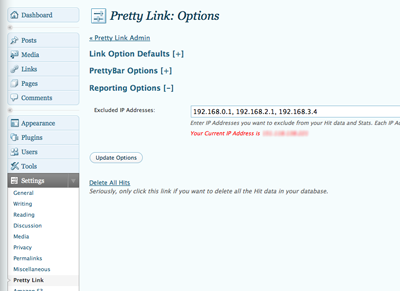
Q. How do I exclude IP Addresses from showing up in my Hit Report & Data Download?
A. Go to the Pretty Link options page from the top level WordPress admin page by clicking “Settings -> Pretty Link” and then click on “Reporting Options.” You'll see a text field appear that will enable you to enter a comma separated list of IP Addresses. For your convenience, directly beneath this field you'll see your current IP address (that's usually the one you'll want to exclude — of course).